
010grp Customers Online Support
Dear customers, the purpose of this page is to allow our support team to remotely connect to your network for installation, upgrades and/or configuration changes to our service deployment at your environment. To achieve this, we use TeamViewer technology.
Please note: you will be asked to supply our support staff the TeamViewer ID located in the software window. This is an Ad-Hoc connection only, no permanent network connection will be installed. Once the support work is complete, the software will be fully removed from your system. This prevents from unauthorized access to your network.
Click The Download Button →

The following is a visual and textual description of the TeamViewer installation process:
Step 1 - Software download:
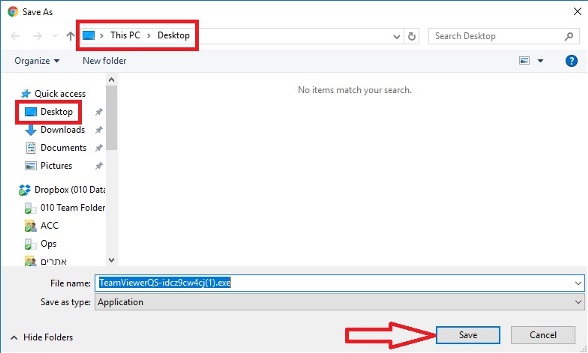
After you have clicked the download, a new window will ask you to choose the download folder. We recommend to download the software directly to your desktop:
Step 2 - Run the installation:
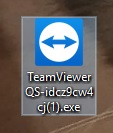
Go to your desktop and run the installation package:
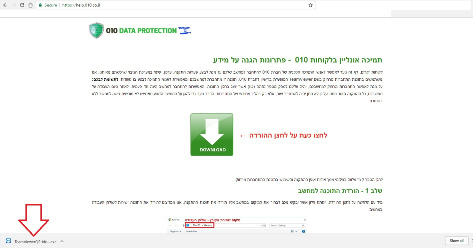
Alternatively, you can run the program by pressing the button at the bottom of the browser (Chrome in this case):
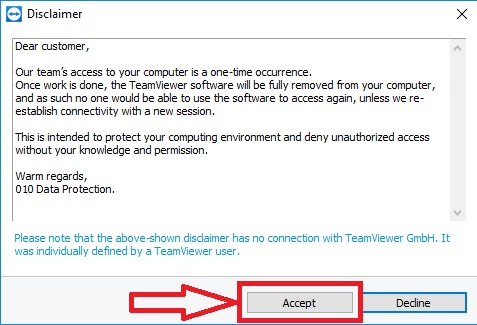
Select “Accept” in the 010 Disclaimer that reminds you the software will be removed at the end of the support work:
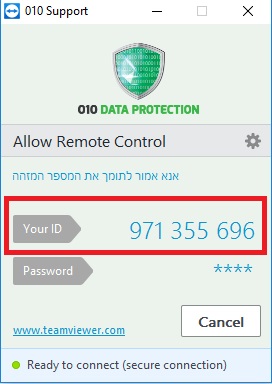
Step 3 - Provide TeamViewer ID:
Once the TeamViewer software turns on, you will be asked to supply the TeamViewer ID to the 010 support engineer:
** To conclude the support process, close the TeamViewer software.